- How-to deploy form Gitlab CE repository to your webserver
How-to deploy form Gitlab CE repository to your webserver
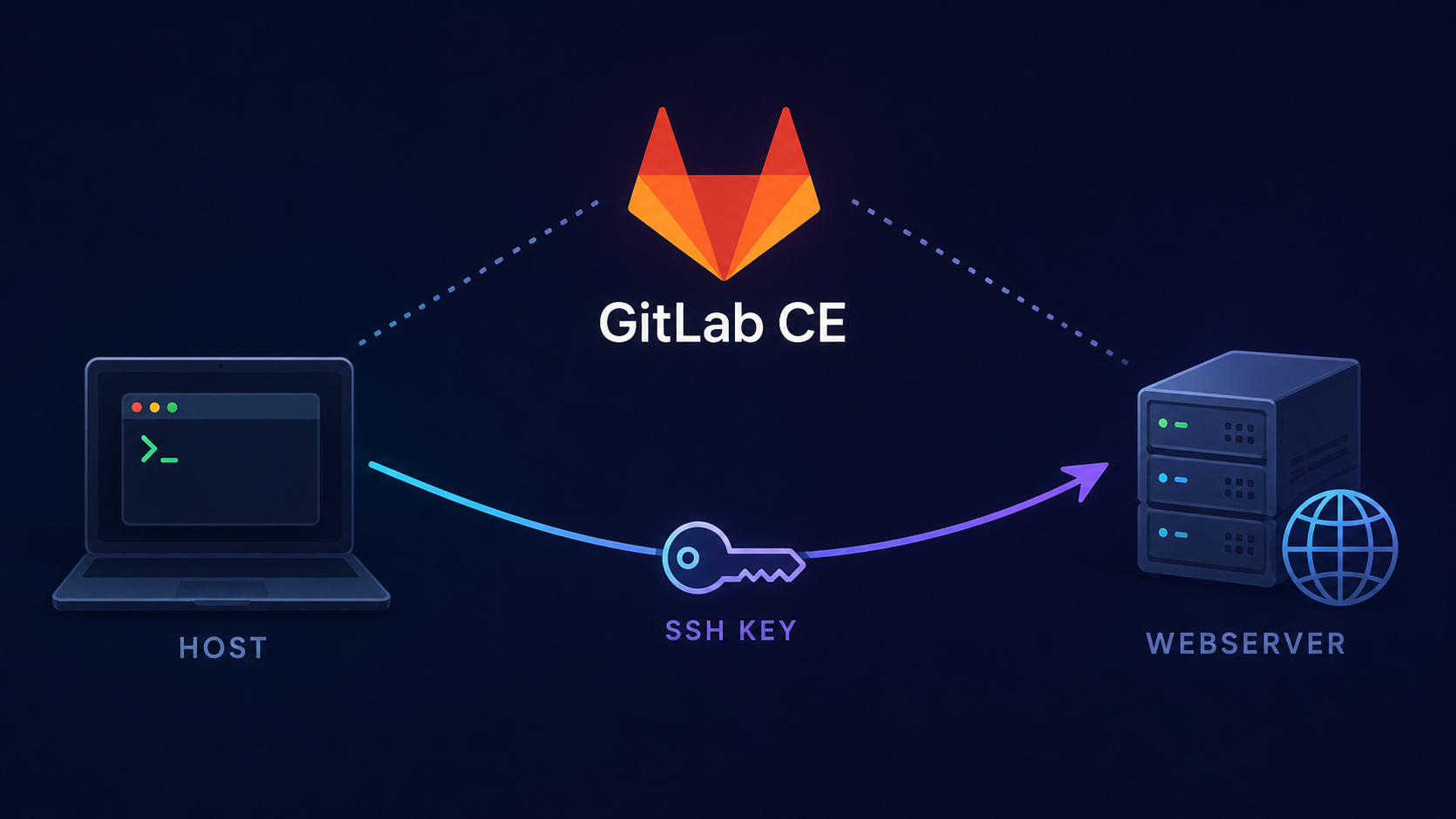
This time we are going to explain how to connect a repository in GitLab CE to another web server, something useful for CI/CD automation.
- How-to deploy form Gitlab CE repository to your webserver
Create deploy user (optional)
This step is recommended to ensure more security in your website host, create a user to only make deploys is a good security practice.
Create the user without password
adduser --disabled-password --comment "" deploy-username
Without password the user can’t be used as a regular user but SSH can give access to them.
man adduser
  --disabled-login
  --disabled-password
        Do  not  run  passwd(1)  to  set a password.  In most situations,
        logins are still possible though (for example using SSH keys or through PAM)
        for reasons that are beyond adduser's scope.  --dis‐ abled-login will
        additionally set the shell to /usr/sbin/nologin.  Valid mode: adduser.
  --comment comment
        Set the comment field for the new entry generated.  adduser will
        not ask for the information if this option is given.  This field is also known
        under the name GECOS field and contains information that is used by the
        finger(1) command.  This used to be the --gecos option, which is deprecated and
        will be removed after Debian bookworm.  Valid modes: adduser, adduser --system.
Add the user to webserver group (www-data)
usermod -aG www-data deploy-username
man usermod
  -a, --append
      Add the user to the supplementary group(s). Use only with the -G option.

  -G, --groups GROUP1[,GROUP2,...[,GROUPN]]]
      A list of supplementary groups which the user is also a member of. Each
      group is separated from the next by a comma, with no intervening whitespace.
      The groups must exist.

      If the user is currently a member of a group which is not listed, the user
      will be removed from the group. This behaviour can be changed via the -a
      option, which appends the user to the current supplementary group list.
Check user deploy user groups
# groups deploy-username
deploy-username : deploy-username www-data users
Generate SSH keys
In the GitLab host with a unpriveliged user execute:
Generate SSH keys
WEBSITE_NAME="website_name.com" ; \
ssh-keygen -t ed25519 -f ~/.ssh/deploy-username-${WEBSITE_NAME}-key -C "CI/CD GitLab key from host:$(hostname) to deploy in ${WEBSITE_NAME}, created at:$(date +%Y%m%d)." -N ""
man ssh-keygen
  -t ed25519  Specifies the type of key to create.
  -f filename Specifies the filename of the key file.
  -C comment Provides a new comment.
  -N new_passphrase Provides the new passphrase, empty = no passphrase.
Copy the public SSH key in your remote webserver
Get the public key content in your GitLab host:
cat ~/.ssh/deploy-username-${WEBSITE_NAME}-key.pub
ssh-ed25519 AAAAC8P-string-FHeQ CI/CD GitLab key from host:GitLab_Host_name to deploy in website_name, created at:YYYYMMDD.
If not exits create the .ssh dir with secure perms
mkdir -v --mode 0700 /home/deploy-username/.ssh
Add the public key in the deploy user authorized_keys file (if not exists vim creates the file)
vim /home/deploy-username/.ssh/authorized_keys
Set apropiate secure perms, only owner user can view and edit the file
chmod -v 0600 /home/deploy-username/.ssh/authorized_keys
Ensure owner:group of .ssh dir and files
chown -vR deploy-username: /home/deploy-username/.ssh
Check the hash of public key files
Do the same command in the gitlab host public key file and the website host authorized_keys file (with only 1 public key registered):
ssh-keygen -lf ~/.ssh/deploy-username-${WEBSITE_NAME}-key.pub
ssh-keygen -lf /home/deploy-username/.ssh/authorized_keys
checking public key hash example
$ ssh-keygen -lf ~/.ssh/deploy-username-website_name.com-key.pub
256 SHA256:/K+gBXQ8PYUVlLqeOy4O+1QrKL1G4+masbY5u57meSw CI/CD GitLab key from host:GitLab_Host_name to deploy in website_name, created at:YYYYMMDD. (ED25519)
Test the connection between hosts
In the GitLab host with other user like your personal user, try to login with the gitlab deploy user private key:
$ ssh -i ~/.ssh/deploy-username-website_name.com-key deploy-username@website_name.com -p 22 hostname -a
website_name website_name.com
Create the website host deploy directory structure
In this configuration we go to reference the Apache HTTP website root to a symbolic link.
This symbolic link goes to point to the latest deploy, this ensures a zero downtime web in a static web sites like Jekyll.
WEBSITE_NAME="website_name.com" ; \
mkdir -vp --mode 0775 /var/www/gitlab-deploys/${WEBSITE_NAME}/initial
Execution example:
# WEBSITE_NAME="website_name.com" ; \
mkdir -vp --mode 0775 /var/www/gitlab-deploys/${WEBSITE_NAME}/initial
mkdir: created directory '/var/www/gitlab-deploys'
mkdir: created directory '/var/www/gitlab-deploys/website_name.com'
mkdir: created directory '/var/www/gitlab-deploys/website_name.com/initial'
Move or backup your old website directory (optional)
If you have previous website data, you have 2 options:
1.- Change the Apache HTTPD config to point to other website directory. 2.- Move the original website directory.
In this step you most have available the website root path:
/var/www/website
Create a symlink to the last deploy dir
In this case we have “initial” as the “first” deploy dir:
WEBSITE_NAME="website_name" ; \
rm -vi "/var/www/${WEBSITE_NAME}" ; \
ln -siv "/var/www/gitlab-deploys/${WEBSITE_NAME}/initial" "/var/www/${WEBSITE_NAME}" ; \
chown -vR www-data: "/var/www/${WEBSITE_NAME}" "/var/www/gitlab-deploys/${WEBSITE_NAME}"
Check the link symlink to the deploy dir
find /var/www -type l -exec stat {} \;
...
  File: /var/www/website_name -> /var/www/gitlab-deploys/website_name.com/initial
  Size:  ...                                                   symbolic link
...
With this in mind the idea is create a deploy directories in:
“/var/www/gitlab-deploys/website_name.com/<timestamp>-<random_numbers>”
and link this last deploy in:
“/var/www/website_name”
symbolic link file.
Set the SETGID to propagate the www-data group to al subdirectories and files
WEBSITE_NAME="website_name" ; \
chown -vR www-data: "/var/www/${WEBSITE_NAME}" "/var/www/gitlab-deploys/${WEBSITE_NAME}" ; \
chmod 2775 "/var/www/${WEBSITE_NAME}" "/var/www/gitlab-deploys/${WEBSITE_NAME}"
Test deploy-user write permissions
In your GitLab host execute:
ssh -i ~/.ssh/deploy-username-website_name.com-key deploy-username@website_name.com -p 22 'echo "Hello world!" > /var/www/${WEBSITE_NAME}/index.html'
If all goes OK your website host is ready to next steps.
GitLab Pipeline Configuration
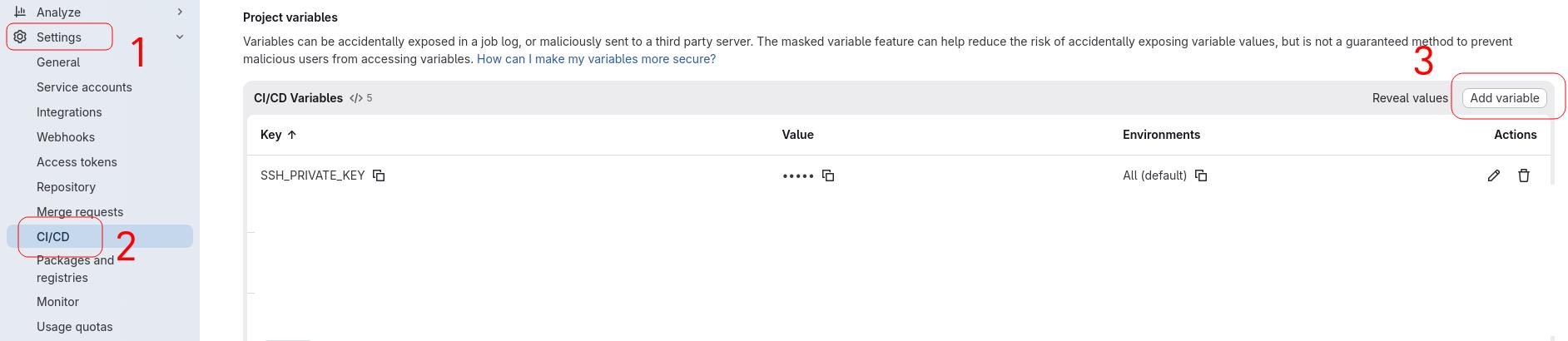
Configure CI/CD Variables on GitLab project
In your GitLab Project go to Settings > CI/CD > Variables > Project variables
GitLab pipeline configuration
Now with all configured you can use the user and GitLab environment variables with a pipeline similar to this:
# https://docs.gitlab.com/ee/ci/yaml/index.html
image: <docker_image:version>

stages:
  - build
  - deploy

variables:
    # ##########################################################################
    # Production server (This variables most be defined in GitLab Project >
    #   Settings > CI/CD > Variables > Project variables )
    # ##########################################################################
    # PROD_SITE_NAME: ""
    # PROD_WEBSITE_ROOT: ""
    # PROD_SSH_USER: ""
    # PROD_SSH_HOST: ""
    # PROD_SSH_PORT: ""
    # PROD_RELEASES_ROOT: ""
    # SSH_KNOWN_HOSTS = ( ssh-keyscan -p 22 -t ed25519 PROD_DOMAIN.COM )
    # https://docs.gitlab.com/ci/jobs/ssh_keys/#add-an-ssh-key-as-a-file-type-variable :
    # DEPLOY_SSH_KEY_PRIVATE
    # ##########################################################################
    # Annother common pipeline variables if needed:
    MY_VARIABLE="value"
...

# ##############################################################################
# BUILD:
# ##############################################################################

build_site:
  stage: build
  before_script:
    # Your operations to prepare the build environment
    - command_1 parameter_1

  script:
    # Your build commands:
    - command_1 parameter_1

  artifacts:
    # Path of your build dir, to be used in the next deploy stage:
    paths:
      - /the/path/to/your/build/dir
    expire_in: 1 days

  only:
    - main

# ##############################################################################
# DEPLOY PRODUCTION
# ##############################################################################
deploy_to_prod:
  stage: deploy
  # Alpine linux is a great image to do the deploys:
  image: alpine:latest

  before_script:
    # --------------------------------------------------------------------------
    # CONFIGURE SSH IN THE GITLAB DOCKER BUILD CONTAINER:
    # --------------------------------------------------------------------------
    - apk add --no-cache openssh-client rsync
    - mkdir -p ~/.ssh && chmod 700 ~/.ssh
    - echo "${SSH_KNOWN_HOSTS}" >> ~/.ssh/known_hosts

    # Copies the file type GitLab environment variable:
    - cp ${DEPLOY_SSH_KEY_PRIVATE} ~/.ssh/id_ed25519
    - find ~/.ssh -type f -exec chmod 0600 {} \;

  script:
    - RELEASE_DIR="${PROD_RELEASES_ROOT}/$(date +%Y%m%d%H%M%S)"

    # Transfer new builded site to release dir:
    - rsync -az --delete
        -e "ssh -p ${PROD_SSH_PORT} -i ~/.ssh/id_ed25519 -o PreferredAuthentications=publickey -o StrictHostKeyChecking=yes"
        ${JEKYLL_PUBLIC_BUILD_PATH}/
        ${PROD_SSH_USER}@${PROD_SSH_HOST}:${RELEASE_DIR}/

    # Updates the symbolic link:
    - ssh -p ${PROD_SSH_PORT} -i ~/.ssh/id_ed25519 -o PreferredAuthentications=publickey ${PROD_SSH_USER}@${PROD_SSH_HOST}
        "chgrp -R www-data ${RELEASE_DIR}"

    # Updates the symbolic link:
    - ssh -p ${PROD_SSH_PORT} -i ~/.ssh/id_ed25519 -o PreferredAuthentications=publickey ${PROD_SSH_USER}@${PROD_SSH_HOST}
        "ln -vsnf ${RELEASE_DIR} ${PROD_WEBSITE_ROOT}"

    # Remove old releases, only keep the last 5:
    - ssh -p ${PROD_SSH_PORT} -i ~/.ssh/id_ed25519 -o PreferredAuthentications=publickey ${PROD_SSH_USER}@${PROD_SSH_HOST}
        "find "${PROD_RELEASES_ROOT}/*" -maxdepth 0 -type d | sort -h | tac | tail -n +6 | xargs -r rm -rf --"

  dependencies:
    - build_site
  only:
    - main
